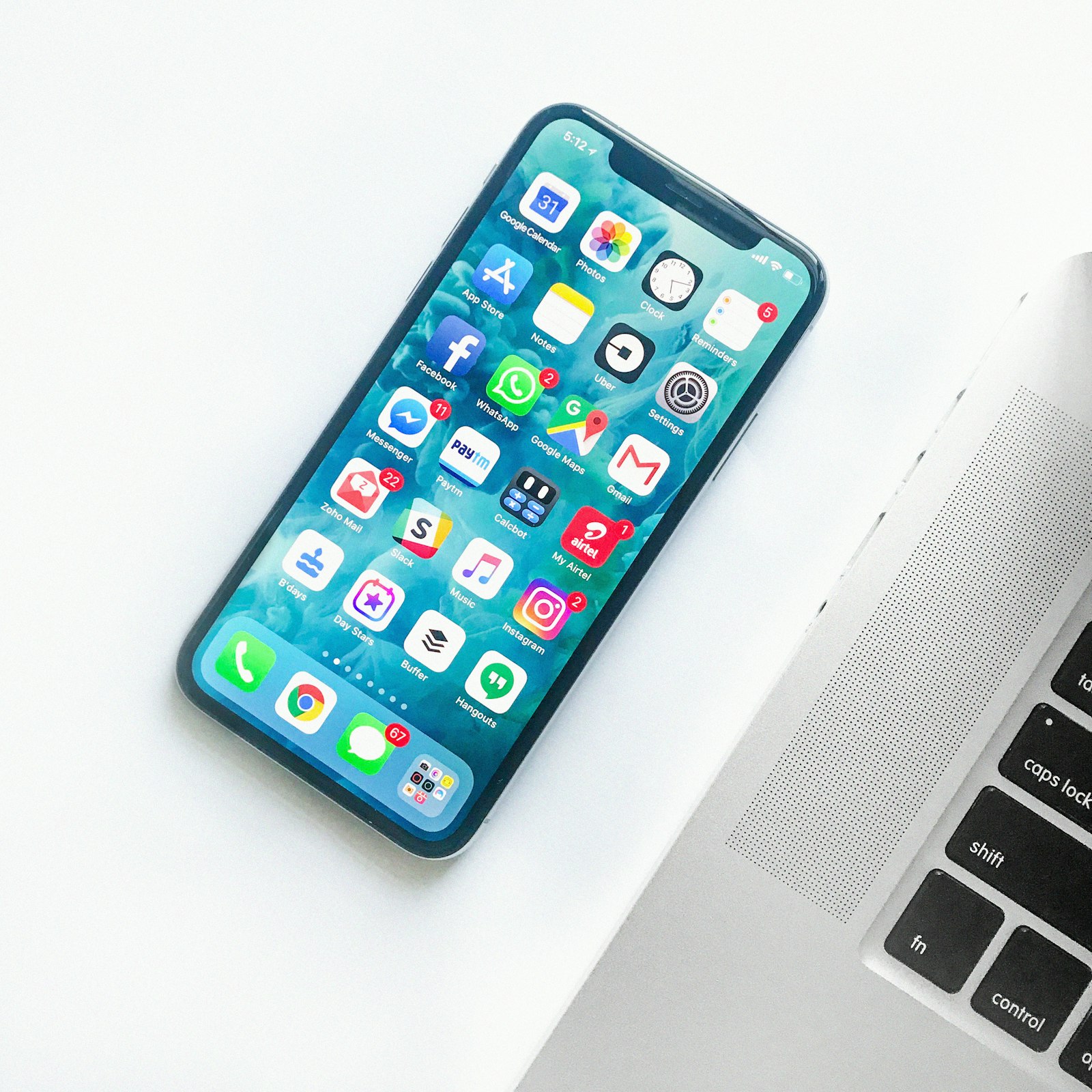
Step-by-Step Guide for iPhone
- Open the YouTube app or youtube.com in Safari
- Find the video you want to download
- Tap Share → Copy Link
- Open Safari and go to ytdownload.us
- Long-press the input field and tap Paste
- Tap "Get Video Info"
- Select your format (MP4, Audio, etc.)
- Tap "Download"
- The file saves to your Files app (Downloads folder)
Tips for iOS Downloads
- Use Safari — Safari handles downloads better than third-party browsers on iOS
- iOS 13+ — The native download manager saves files to the Files app
- Find your file — Open Files app → Browse → Downloads
- Play downloaded videos — Tap the file in Files to play, or open with VLC for more format support
- Save to Camera Roll — Open the video in Files, tap Share → Save Video
iPhone Download FAQ
Does it work without an app?
Yes! YTDownload.us works entirely in your browser. No app installation needed.
Where do downloads save on iPhone?
Downloads save to the Files app in the Downloads folder (iOS 13+). You can change the save location in Safari Settings.
Can I download in 4K on iPhone?
Yes, you can download in 4K. However, most iPhones display at 1080p or lower, so 1080p is usually sufficient.
Does it work on iPad?
Absolutely! The process is identical on iPad. iPadOS has the same download manager as iOS.